
Download uTorrent Remote – free, secure torrent manager for any device
Overview
uTorrent Remote is a lightweight web‑based companion for the popular uTorrent desktop client. It lets you monitor, start, pause, and organise your torrent downloads from any device that has a modern browser – whether you’re on a Windows PC, a macOS laptop, an Android phone, or an iPhone. The service is completely free, requires no additional subscription, and works by simply linking the remote web portal to a uTorrent instance that is already running on your home computer.
Because the connection is handled through HTTPS, your credentials and torrent data travel securely over the internet, giving you peace of mind while you’re away from home. The interface mirrors the familiar layout of the desktop client, so even users who have been adding torrents for years will feel right at home. While it isn’t as feature‑rich as the full‑blown desktop version – some advanced settings are still only accessible locally – uTorrent Remote covers virtually every day‑to‑day task: adding new torrent links, viewing progress, adjusting bandwidth limits, and even setting up scheduled seeding.
For power users who keep their machines on 24/7, it becomes an indispensable tool, turning a static torrent box into a truly mobile download hub. The simplicity of the setup, combined with the ability to keep your downloads under control from anywhere, makes uTorrent Remote a compelling add‑on for anyone already invested in the uTorrent ecosystem.
Key Features of uTorrent Remote
- Web‑Based Control Panel: Access your torrent list from any browser without installing extra software.
- Cross‑Platform Compatibility: Works on Windows, macOS, Linux (via the desktop client), Android, and iOS devices.
- Secure HTTPS Connection: All data is encrypted, protecting your login details and torrent information.
- Real‑Time Statistics: See live download/upload speeds, ETA, and peer count for each torrent.
- Remote Adding of Torrents: Paste magnet links or .torrent URLs directly into the remote interface.
- Bandwidth Management: Adjust global or per‑torrent speed limits from anywhere.
- Queue Management: Reorder, pause, resume, or delete torrents with a single click.
- Multi‑Computer Support: Register several computers under one account, each with its own password and optional security question.
- Lightweight Design: The web app loads quickly even on slower connections, keeping the experience smooth.
- Free of Charge: No hidden fees, no trial periods – the remote service is completely free for all uTorrent users.
Each of these features has been designed with a specific user scenario in mind. For example, the remote adding of torrents solves the classic “I’m on a train and need to seed a new release” problem, while the bandwidth management tools let you keep your home network usable for other family members even when large files are downloading. Security is a major concern for any web‑based service, and uTorrent Remote addresses it by enforcing HTTPS and requiring a unique password for each registered machine. The multi‑computer support is especially handy for households with more than one PC or Mac that runs uTorrent; you can switch between them without having to create a new account each time. Finally, the fact that the interface mirrors the desktop client means you won’t need to learn a completely new UI – the learning curve is essentially zero.
Installation & Daily Usage Guide
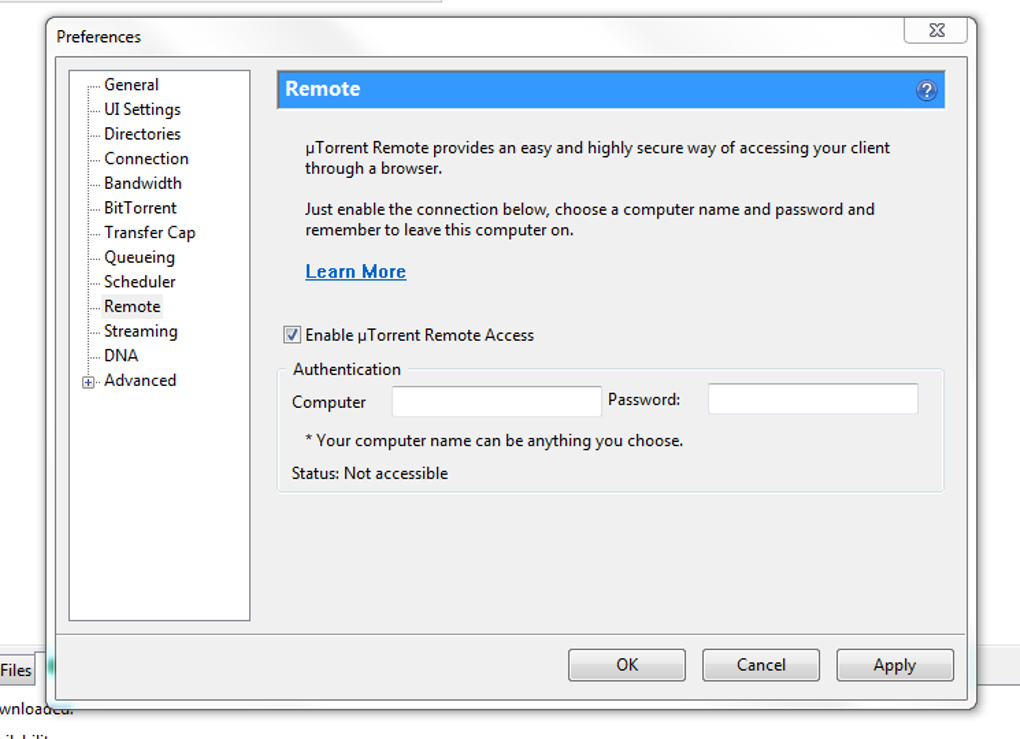
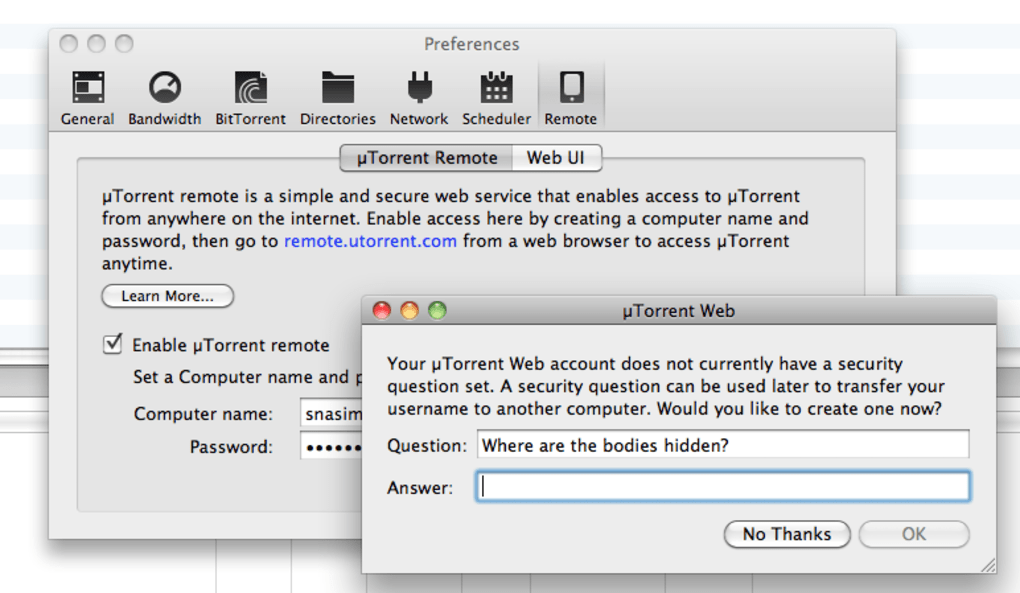
Getting uTorrent Remote up and running is intentionally straightforward. First, make sure you have the latest version of the uTorrent desktop client installed on the computer you intend to control remotely. Open the client, navigate to Options > uTorrent Remote, and click the “Enable uTorrent Remote” toggle. You’ll be prompted to create a unique computer name, a strong password, and optionally a security question that can be used if you ever need to reset access on a different device. Once the credentials are saved, the client will automatically register your machine with the remote service.
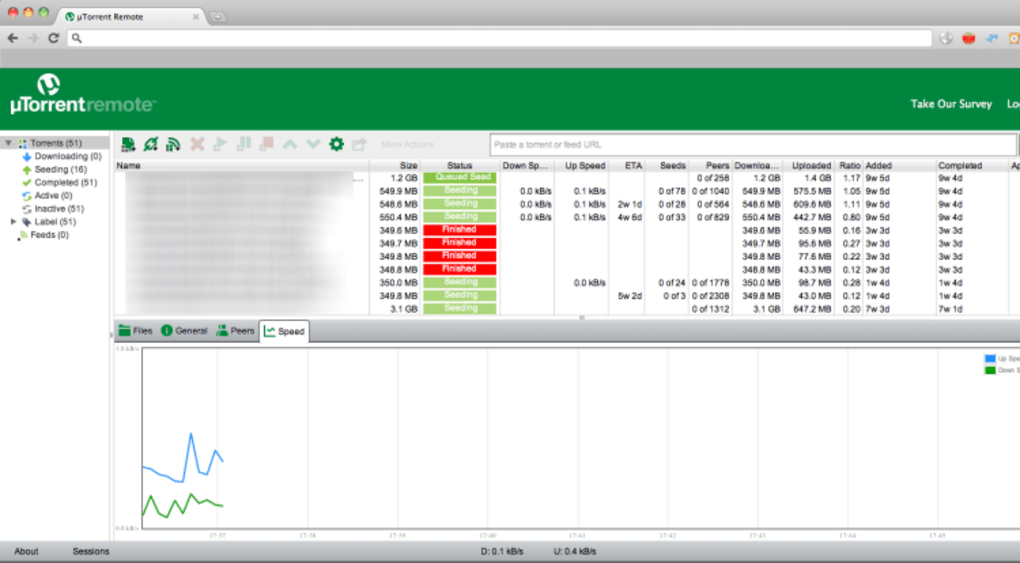
The next step is to open a web browser on any device and go to https://remote.utorrent.com/. Sign in with the computer name and password you just created. After a quick authentication, the full list of active torrents appears, presented in the familiar tabular layout. From here you can:
- Add new torrents by pasting a magnet link or uploading a .torrent file.
- Pause, resume, or delete any torrent with a single click.
- Adjust global or per‑torrent speed limits via a slider control.
- Reorder the download queue by dragging rows up or down.
- View detailed statistics, including peers, seeds, and tracker information.
Because the remote interface is purely web‑based, there’s no need to install additional apps on your phone or tablet. However, if you prefer a native feel, both Android and iOS have third‑party wrappers that point to the same URL, providing push notifications for completed downloads. For daily usage, remember that the host computer must remain powered on and the uTorrent client running; otherwise the remote panel will display a “offline” status. Many users set their PCs to a low‑power sleep mode that still keeps the network interface alive, ensuring the remote service stays reachable while conserving electricity. If you ever need to revoke access, simply return to the desktop client’s Remote settings and delete the entry – the next login attempt will be denied.
Compatibility, Pros & Cons
uTorrent Remote works with any operating system that can run the standard uTorrent desktop client. This includes:
- Windows 7, 8, 10, and 11 (both 32‑bit and 64‑bit)
- macOS 10.12 Sierra and later
- Linux distributions that support the official uTorrent binary (Ubuntu, Debian, Fedora, etc.)
The remote web portal itself is platform‑agnostic, so you can access it from any modern browser on Android, iOS, ChromeOS, or even older desktop browsers that support HTTPS. This broad compatibility ensures that you’re never locked out of your downloads, regardless of the device you happen to be using at the moment.
Pros
- Completely free with no hidden fees.
- Secure HTTPS connection protects credentials.
- Real‑time torrent monitoring and control from anywhere.
- Simple setup that integrates directly with the existing uTorrent client.
- Cross‑platform support for Windows, macOS, Linux, Android, and iOS.
- Lightweight interface loads quickly on low‑bandwidth connections.
- Supports multiple computers under a single account.
Cons
- Requires the host computer to stay on and have uTorrent running.
- Advanced settings (e.g., protocol encryption, scheduler) are only available locally.
- No native desktop app – you must use a browser or third‑party wrapper.
- Occasional latency if the host’s internet connection is slow.
- Interface is less polished than the native client, though functional.
Overall, uTorrent Remote delivers on its promise of giving users control over their torrents from any location. The free price tag, solid security, and ease of use outweigh the minor drawbacks of needing the host machine online and lacking some deep‑level settings. For most home users and power users alike, the benefits far outweigh the limitations, making it a worthwhile addition to the uTorrent ecosystem.
FAQ & Final Thoughts – Should You Download uTorrent Remote?
Is uTorrent Remote really free?
Yes, the remote service is completely free for all uTorrent users. There are no hidden subscription fees or premium tiers.
Do I need to open any ports on my router?
No special port forwarding is required. uTorrent Remote communicates with the uTorrent client over outbound HTTPS, which traverses most NAT configurations automatically.
Can I use uTorrent Remote on a mobile data connection?
Absolutely. As long as you have a web browser (or a third‑party wrapper app) and an internet connection, you can control your torrents from a smartphone or tablet, even on cellular data.
What happens if my home computer goes to sleep?
If the computer fully powers down or the uTorrent client stops, the remote interface will show an “offline” status. To keep remote access, configure your PC to stay awake or use a low‑power sleep mode that leaves the network adapter active.
Is my data safe when using uTorrent Remote?
Yes. All communication between your browser and the remote server is encrypted with HTTPS, and your login credentials are stored only on the remote service, not on the client device.
In conclusion, uTorrent Remote stands out as a practical, secure, and cost‑free solution for anyone who wants to stay on top of their torrent activity while away from their primary computer. The setup process is quick, the feature set covers the essential tasks most users need, and the cross‑platform nature means you can switch between a laptop, a tablet, or a phone without missing a beat. While it does rely on the host machine being powered on and does not expose every advanced setting, these are reasonable trade‑offs for the convenience it offers. If you already use uTorrent on a desktop or laptop and occasionally need to check on your downloads from the couch, the coffee shop, or a hotel room, downloading uTorrent Remote is a no‑brainer.
Ready to take control? Click the download link below, enable remote access in your uTorrent client, and start managing your torrents from anywhere in the world.
Access uTorrent Remote Now


.png)



